


MediBang Paint:Draw Art, Comic
3.714.37K Reviews
App Specs
- Version
- 28.25
- Updated On
- License
- Free
- Downloads
- 10,000,000+
- Developer
- MediBang Inc.
- Categories
- Art & Design
- Platform
- Android, iOS
Screenshots
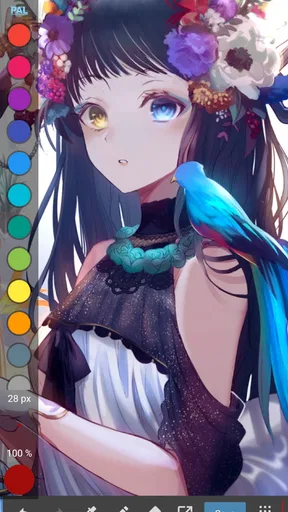
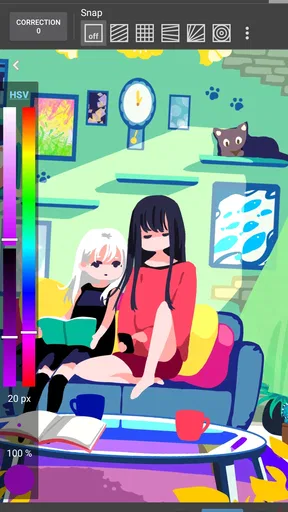
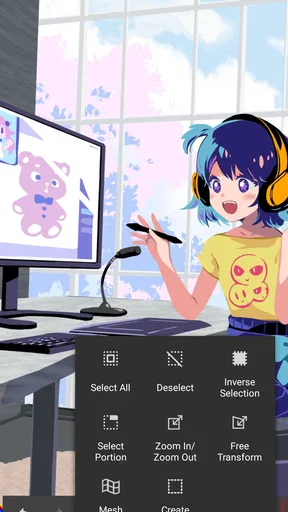
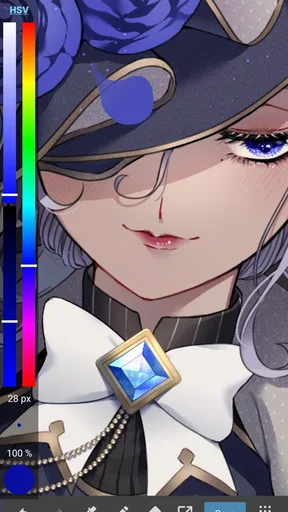
 Analysis by AppCompare
I often reach for a drawing app when a quick sketch starts turning into something I want to keep. MediBang Paint:Draw Art, Comic is aimed at that jump from casual doodling to more deliberate illustration and comic work. It is an art and design app from MediBang Inc., and I find its mix of drawing tools and comic-focused options most appealing when I want to work on a phone or tablet without giving up layers and panel layouts.
What to expect from its speed
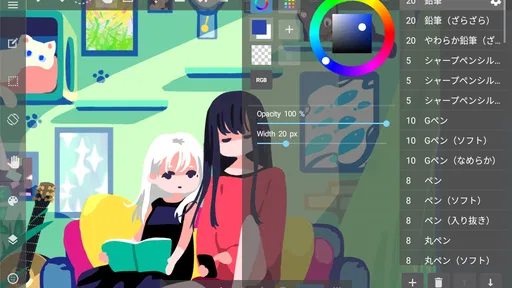
For a simple sketch, the workflow feels direct: choose a brush, set its thickness or opacity, and start drawing. I appreciate that the common controls are easy to reach instead of buried behind a complicated setup. That makes the app a practical choice for capturing an idea before it disappears, or for making a small drawing during a spare moment.
Speed depends on what you ask the canvas to do. A light sketch is a different task from a page with many layers, detailed brushwork, panels, and lettering. I would treat it as a capable mobile art workspace rather than assume every complex project will feel effortless on every device. A useful habit is to keep early drafts simple, then add detail in stages so you can notice when the canvas begins to feel crowded.
Where a project gets demanding
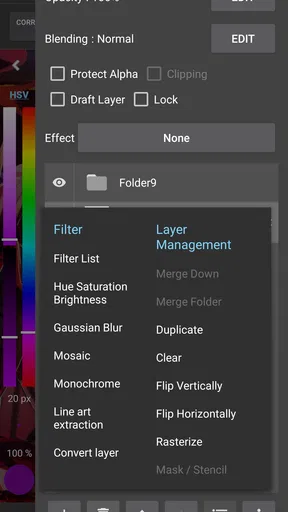
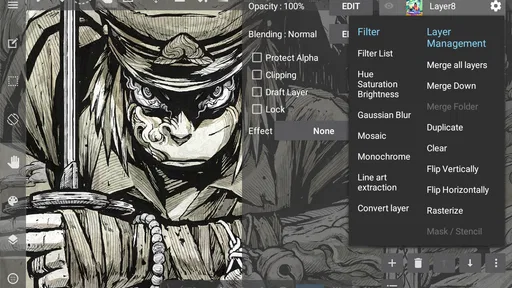
Layers are central to the app’s appeal. They let me separate a rough drawing from cleaner lines or other elements, and locking a layer helps prevent accidental edits while I work elsewhere. That separation is more than a convenience: it makes revisions safer. If a character’s outline needs changing, I can focus on that part without treating the whole page as one fragile image.
There is a trade-off, though. Layers make complex work easier to manage, but they also create more decisions: what belongs together, what should stay editable, and which layer is safe to change. I recommend naming or organizing layers as a page grows rather than waiting until the canvas is busy. Even a modest comic page can become confusing if rough sketches, final lines, and text are mixed together.
Comic tools can also make a project feel heavier than a quick sketch. Panels, lettering, and detailed artwork all compete for attention on a small screen. I find it helps to plan the page at a rough level first: decide the reading flow, place the panels, and only then spend time refining each scene. This reduces the chance of polishing an image that later has to be squeezed into a different layout.
Reliability and moving between devices
The cloud workflow is useful if I want to continue a drawing on another device. It can make a tablet-to-phone handoff more convenient, especially when I use a larger screen for careful work and a phone for small edits or idea capture. I would still make a deliberate check that the project is saved and available before relying on a device switch for an important deadline. Cloud access is most helpful when it is part of a routine, not a last-minute rescue plan.
Worth Reading Before You Choose

Flipboard Shows What News Apps Must Do Beyond the Feed

Switching to Android Auto Means Rethinking Your Driving Routine

Google Calendar Makes a Crowded Week Easier to Manage

Ludo King Makes the Most of the Minutes Between Plans

Baby Panda World Brings Quick Play to Modern Phones, but Its Game Library Feels Busy

ESPN’s Live Game View Makes Following Close Games Easier
Automatic saving is reassuring, but it should not replace sensible project habits. For work I care about, I would keep the file organized and make sure I can find the current version before closing the app or moving to another device. That is a useful precaution in any mobile art workflow, particularly when a project has many layers or a lot of lettering that would take time to recreate.
Device fit and practical limits
The app is free to install, with in-app purchases listed from $2.49 to $8.99 per item. Its age rating is Teen. It has a 3.8 average from around 301,000 ratings, and has passed 10 million installs, so it is a familiar option for mobile creators. Version 28.19 supports Android 7.0 and later.
Those details do not tell me how every phone will handle a large canvas, so I would judge performance on the device I plan to use. Small screens are fine for thumbnail sketches and touch-ups, but they can make precise line work and arranging comic text more fiddly. If I were buying a device mainly for drawing, I would prioritize a comfortable screen and a stylus that suits my hand rather than expect an app alone to make detailed work comfortable.
Compared with a basic sketching app, MediBang Paint offers a more involved toolkit, especially for comics and layered illustration. Compared with desktop art software, the phone-first convenience is the strength, while screen space and touch interaction are the obvious compromises. If your main goal is a quick note or a few loose marks, a simpler drawing app may be less distracting. If you need a desktop-centered production setup with a broad workspace, a desktop program may fit better.
Unleashing Creativity with User-Friendly Tools
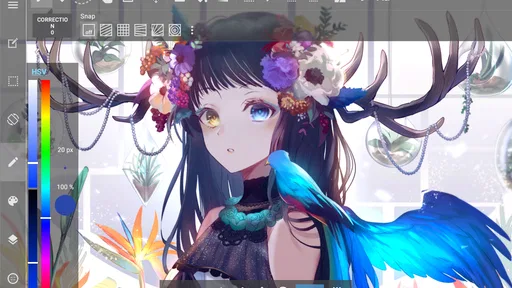
The first thing I noticed after installing MediBang Paint was its intuitive interface. It’s like they knew exactly what an artist needs without all the extra fluff. The tools are right there, easy to access and simple to use. You’ve got a plethora of brushes to choose from, and the customization options are impressive. Want to adjust the thickness or opacity of your brush? No problem. It’s all at your fingertips.
What really blew my mind was the layer functionality. If you've ever worked with digital art before, you know how crucial layers are. MediBang Paint lets you create multiple layers, allowing for intricate detailing and complex designs. And the best part? It’s all so smooth. Switching between layers is a breeze, and there’s even a handy feature to lock them, preventing any accidental mishaps.
Comic Creation Made Easy
Okay, let’s talk about the comic creation features because this is where MediBang Paint truly shines. If you’re into making comics, you’ll love the panel tools. The app offers a variety of comic templates, making it super easy to get started. You can drag and drop panels onto your canvas, resizing and reshaping them to fit your story perfectly.
And let's not forget the text features. Adding dialogue is straightforward, with tons of fonts to choose from. You can adjust the size, color, and placement to create the perfect speech bubble. It’s like having a mini comic studio right in your pocket.
Cloud Integration: A Savior for Artists on the Go
One of my favorite aspects of MediBang Paint is its cloud integration. As someone who’s always bouncing between devices, this feature is a lifesaver. I can start a project on my tablet and then pick it up on my smartphone without missing a beat. Plus, the app saves your work automatically, so no more heart-stopping moments of losing hours of hard work.
The cloud feature also means you can collaborate with friends or colleagues. You can share your work, get feedback, or even work on a project together. It’s perfect for group projects or just bouncing ideas off each other.
Community and Resources
Another great thing about MediBang Paint is the community behind it. The app connects you to a vast network of artists sharing tips, tricks, and tutorials. There’s always something new to learn, and the community is super supportive. Whether you’re looking for inspiration or advice, you’ll find it here.
There are also tons of resources available directly in the app. Need a specific brush or texture? Chances are, you’ll find it in their library. This is a huge plus for artists looking to expand their toolset without breaking the bank.
Choosing it for the right kind of work
I think this app is a particularly good fit for someone learning digital illustration who wants to move beyond a single brush and a blank canvas. It gives a beginner room to try layers and comic layouts without demanding that every drawing become a polished project. Someone who already makes comics may also appreciate being able to rough out a page, arrange panels, and add dialogue in one mobile workspace.
A realistic use for me would be sketching a character during a commute, then returning to the drawing at home to refine the lines on a tablet. For a short comic, I would start by blocking in the panel arrangement, keep the rough drawing separate, and add dialogue after the image composition is settled. That order makes text placement easier to judge and avoids reworking finished details just to make room for a speech bubble.
I would be more cautious about choosing it as my only tool for large, intricate commissions if I expected to do every stage on a phone. The small screen can slow down careful edits, and managing a busy page by touch is less comfortable than working with a larger display. A simpler app is a better match for someone who only wants an occasional doodle, while an artist who needs a large desktop workspace may prefer to do final production elsewhere.
Everyday workflow and sensible expectations
One practical tip is to use layers as checkpoints in the drawing process: keep the loose construction separate from the cleaner pass, and lock the parts you do not want to disturb. That makes experimentation less risky. For comics, I would also settle the panel flow before spending time on small details; a clear page structure matters more than polished texture when the reader is still unsure where to look next.
Another useful trade-off is deciding when cloud convenience is worth the extra step of keeping projects orderly. If I switch between devices, I would finish a session by confirming that I am working with the intended version before continuing elsewhere. That small pause is especially worthwhile on collaborative work, where feedback or edits can otherwise leave people unsure which copy is current.
The app is free to try, which lowers the barrier for exploring its drawing and comic tools, but the listed in-app purchases mean I would check what is included before building a routine around any paid resource. I would begin with the tools already available, identify a specific limitation in my workflow, and only then consider whether an optional purchase solves it. That is a better approach than paying simply because a larger toolkit sounds useful.
Final Thoughts
In a nutshell, MediBang Paint:Draw Art, Comic is a powerhouse of an app. It offers everything you need to create stunning artwork, whether you’re sketching for fun or working on your next big project. The user-friendly interface, combined with a robust set of features, makes it accessible for beginners while still being deep enough for professionals.
If you’re serious about digital art or comics, I highly recommend giving MediBang Paint a try. It’s a fantastic tool that can help bring your creative visions to life. Plus, it’s available for both Android and iOS, so you can get started wherever you are. Happy drawing!
Pros
- User-friendly interface for beginners.
- Wide range of brushes and tools.
- Cloud storage for easy access.
- Collaborative work options available.
- Supports various file formats.
Cons
- Ads can be intrusive at times.
- Limited features in free version.
- Occasional lag on older devices.
- Requires internet for cloud sync.
- Some tools lack advanced options.
FAQs for MediBang Paint:Draw Art, Comic
What features does MediBang Paint offer for artists?
MediBang Paint is equipped with a variety of features tailored for both amateur and professional artists. It offers an extensive collection of brushes, fonts, pre-made backgrounds, and other resources. Additionally, the app supports cloud saving, allowing users to access their work across multiple devices. It also has comic creation tools such as panel creation and easy-to-use comic page management.
Is MediBang Paint suitable for beginners in digital art?
Yes, MediBang Paint is designed to be user-friendly for beginners while still offering advanced tools for experienced artists. The interface is intuitive, and there are plenty of tutorials and guides available to help new users get started. It’s a great platform for those new to digital art, allowing them to explore various styles and techniques.
Can I use MediBang Paint on multiple devices?
Absolutely, one of MediBang Paint’s convenient features is its cloud-based system, which allows users to save their work and access it from different devices. Whether you're using it on a phone, tablet, or computer, you can continue your projects seamlessly, provided you have an internet connection to sync your work.
Are there any in-app purchases or subscriptions required?
MediBang Paint is free to download and use, but it does offer in-app purchases for additional features and content. These include extra brushes and other premium resources. While the free version is fully functional and sufficient for most users, those seeking more customization options might consider these purchases.
How does MediBang Paint compare to other digital art apps?
MediBang Paint stands out due to its combination of versatility and accessibility. Unlike many other apps, it offers a comprehensive set of features for free, which appeals to a wide range of users from hobbyists to professionals. Its cloud synchronization also gives it an edge, offering flexibility and convenience across devices.


